Windows
Configure mouse input, switch profiles and set an emergency stop shortcut.
Microsoft Store ↗ Auto ClickerWindows · Android
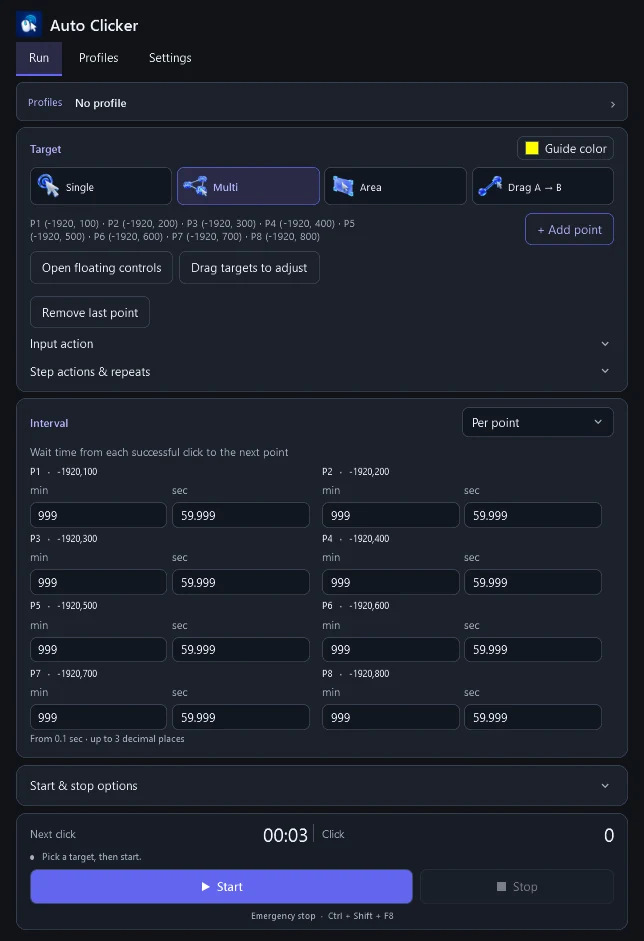
Choose the locations, input type and timing. Save a profile for repeated work, and pause or stop from the controls whenever you need to.
Configure mouse input, switch profiles and set an emergency stop shortcut.
Microsoft Store ↗Run taps, long presses and swipes from the floating controls. Pause before you move the markers.
Google Play ↗Start with one point, a sequence of points, a spot inside an area or a movement between two positions.
Use a fixed timing, a range or per-point intervals where available. Set automatic stop conditions when the task has a clear end.
Save your timing and actions to reuse later. When importing a compatible JSON profile on another device, assign fresh coordinates for that screen.
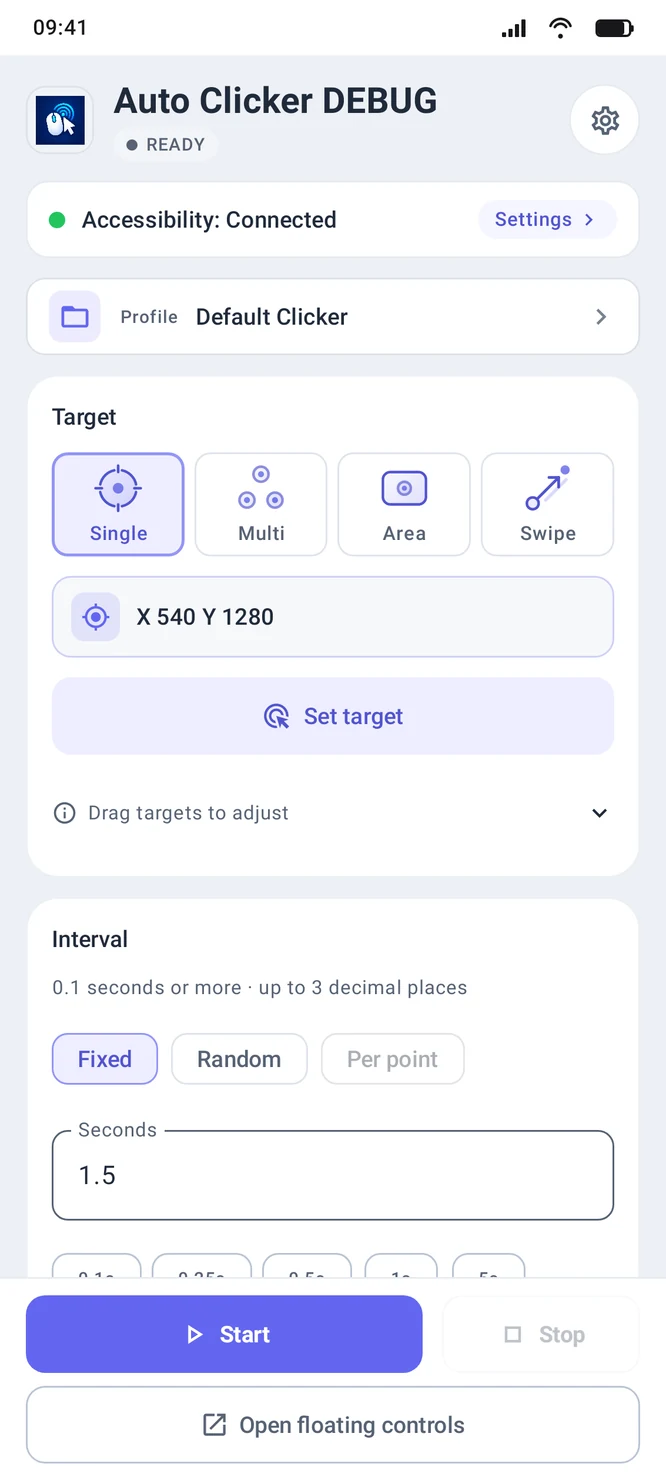
Use the app’s setup prompt to open the Android accessibility settings and enable Auto Clicker.
Return to the app, place the markers and set the interval. Use Start, Pause or Resume from the on-screen controls.
Use Stop in the floating panel. Auto Clicker uses accessibility for the chosen gestures and overlay controls. It does not read the contents of your screen.
Use export and import for compatible profiles. Settings remain on the device. Reassign coordinates to match the new screen.
On Windows, set the emergency shortcut before you run a sequence. On Android, use the floating Stop control. A gesture already dispatched may finish.
Its profile editor handles more of the Android action set, including per-point actions, curves and two-finger pinch commands. For current store builds, check the options in the installed version.