Spreadsheet to structured data
Convert CSV, TSV and delimited TXT to JSON, JSONL or XLSX. Choose a worksheet from a multi-sheet XLSX file to explore and export.
 Data Convert StudioWindows 10/11 x64
Open CSV, TSV, JSON, JSONL or XLSX as a table and choose what to export. Explore and convert files locally on your Windows PC.
Version 1.0.2 is in review · JSONL import, XLSX export and worksheet selection will be available when the update is published.
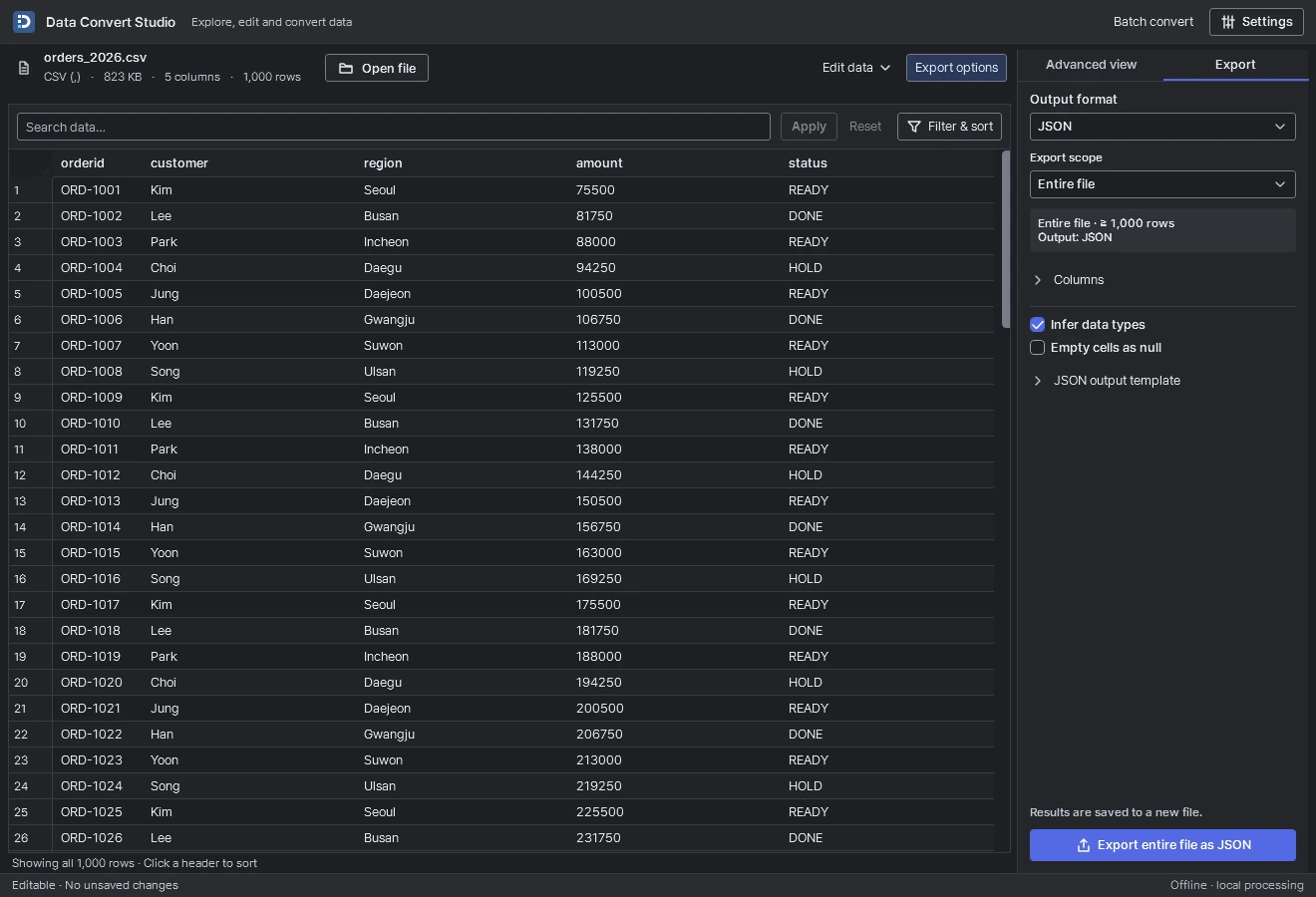
Save the same two rows as a JSON array or as JSONL, one object per line. This sample keeps leading zeroes in the order IDs.
[
  {"order_id":"0012","status":"READY"},
  {"order_id":"0013","status":"DONE"}
]Search the full dataset by text or regular expression. Combine two filters, sort by two columns or inspect duplicate and unique rows.
For CSV, TSV and delimited TXT in All Rows, edit cells, add and remove rows or columns, or paste a block. Undo and redo are available.
A filtered export includes matching rows beyond the visible page. Choose the output columns, then rename or reorder them before exporting.
Convert CSV, TSV and delimited TXT to JSON, JSONL or XLSX. Choose a worksheet from a multi-sheet XLSX file to explore and export.
Explore JSON objects, arrays, JSONL and NDJSON as tables and export them to CSV, TSV, delimited text or XLSX.
Reuse JSON output templates and transform selected columns. Batch convert supported formats and retry failed jobs.
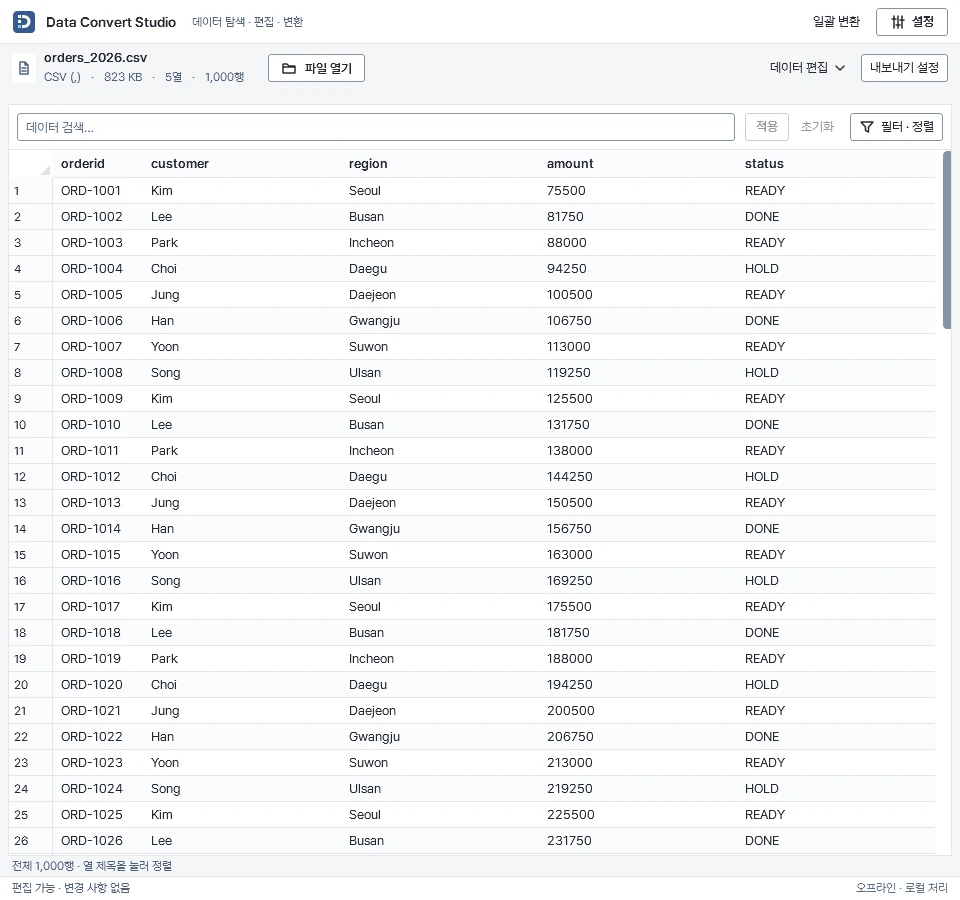
Conversion runs locally without an account or a network connection. The app does not send selected files or paths to an application server.
The selected XLSX worksheet is read as saved cell values. JSON and XLSX tables are read-only. Excel formulas are not recalculated and formatting is not reproduced.
Open JSONL and NDJSON files to search and filter their rows. You can also batch-convert files to JSONL and retry failed items.
The app writes and checks a temporary output before committing it. A failed conversion keeps an existing destination file.
Use Windows 10 version 2004 or later or Windows 11 on x64. The app is available in English, Korean, Japanese, Simplified and Traditional Chinese, Spanish, Brazilian Portuguese, German, French and Italian.